Installing Obsidian on WSL with a Windows GUI | Easy Setup

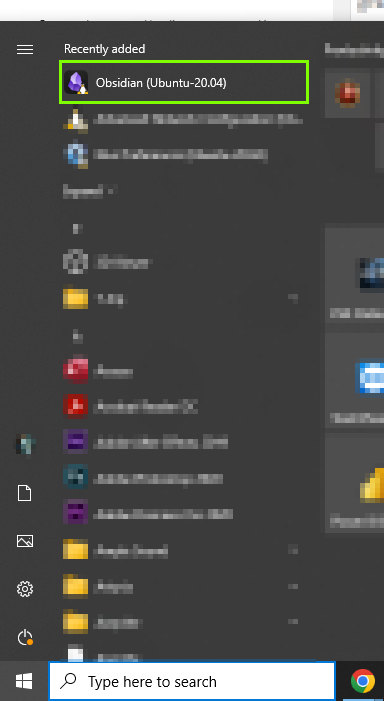
TL;DR — WSL lets you install apps on the WSL filesystem but open their GUI natively in Windows. Install Obsidian via your distribution’s package manager; an Obsidian entry with a little Tux (Linux penguin) icon appears in your Start Menu. You can also run the
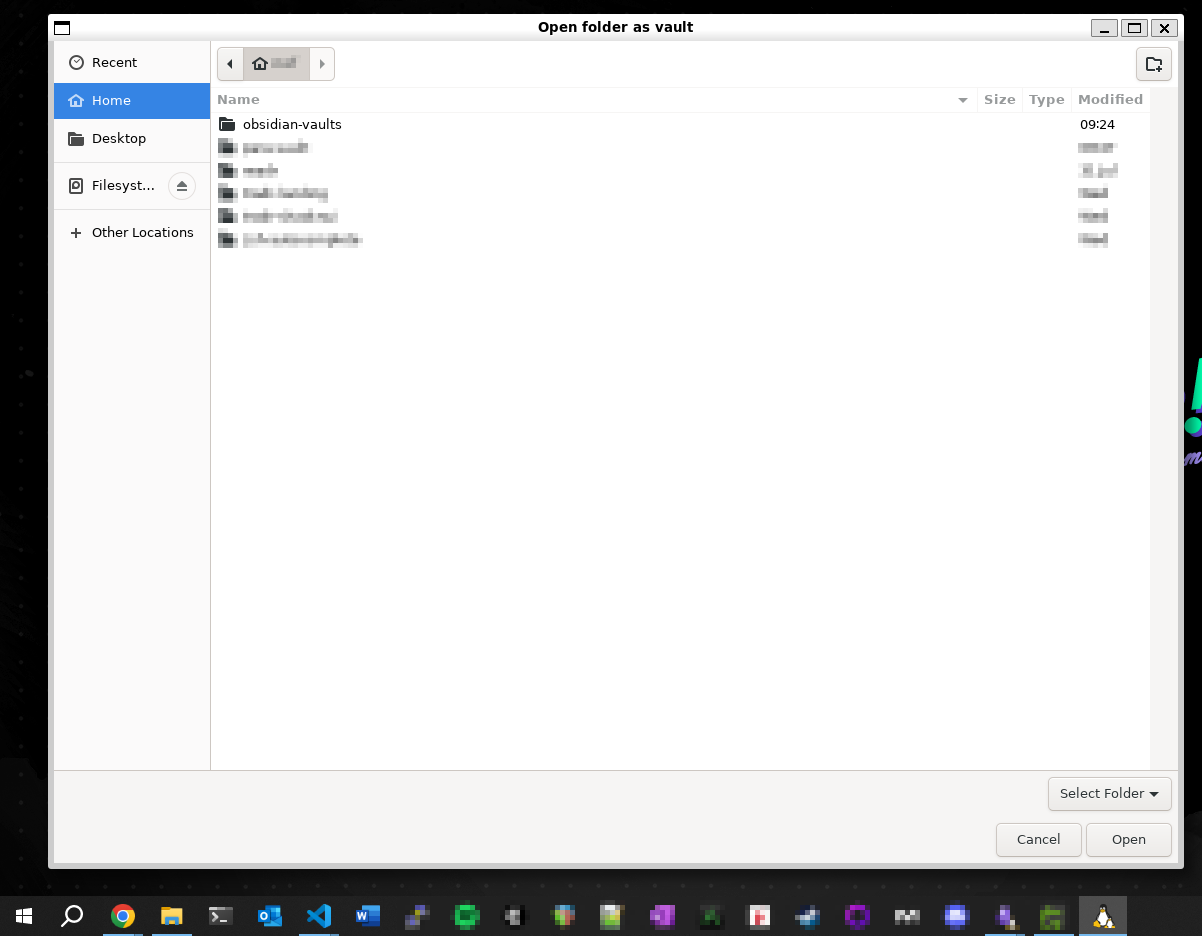
obsidianbinary in the WSL terminal and the GUI opens on the Windows desktop. It just works™.
Huge shoutout to Rishnav in the Obsidian forums for the solution! Forum post (opens in a new tab)
Obsidian (opens in a new tab) installed on Windows cannot open files under the \\wsl.localhost\ mount that contains your WSL distribution filesystems. Try to open a directory therein, and Obsidian.exe will fail with the following error:
Error: EISDIR: illegal operation on a directory, watch '\\wsl.localhost\Ubuntu-20.04\home\username\vault-directory'If you want to use Obsidian’s GUI on your desktop, but your vault to live inside your WSL distro, this is for you. WSL lets you install a GUI app inside WSL and run it directly on the Windows desktop (Docs (opens in a new tab)).
Simply ✨ download and install ✨ Obsidian’s package for your distribution (or build from source)!
I’ve included a bash script that’ll work on Ubuntu or Debian to demonstrate.
#! /bin/bash
# Works on Ubuntu/Debian systems

## Get the newest version of Obsidian .deb file
deb_link=$(curl -s https://obsidian.md/download |\
  grep -o "https://github[^0-9]*/v[0-9]\.[0-9]\.[0-9]/obsidian_[0-9]\.[0-9]\.[0-9]_amd64.deb")

wget $deb_link

## Get filename
deb_filename=$(ls | grep obsidian_[0-9]\.[0-9]\.[0-9]_amd64.deb)

## Install obsidian inside Ubuntu
sudo apt-get install -y ./$deb_filename
You should see a new Start Menu application named “Obsidian (Ubuntu-20.04)” that will function exactly as if you’d used the Windows .exe installer.
(Or, type obsidian or /opt/Obsidian/obsidian in the WSL terminal.)